Import your contacts
Hard blocker — nothing works until this is done. Alfred needs people to talk to.
- 1
Why this comes first
Alfred scores, segments, and follows up with your contacts — but he can only work with people he knows about. Importing your existing list is what turns Alfred from a chatbot into a marketing operator.
- 2
Prepare your CSV
Export your customer list from wherever you keep it today (spreadsheet, old CRM, booking system). Alfred needs at minimum an email column. Helpful extras: first name, last name, phone, and any tags or notes you have.
Don't worry about perfect data. Alfred deduplicates on email address, so duplicates won't create a mess.
- 3
Open the import tool
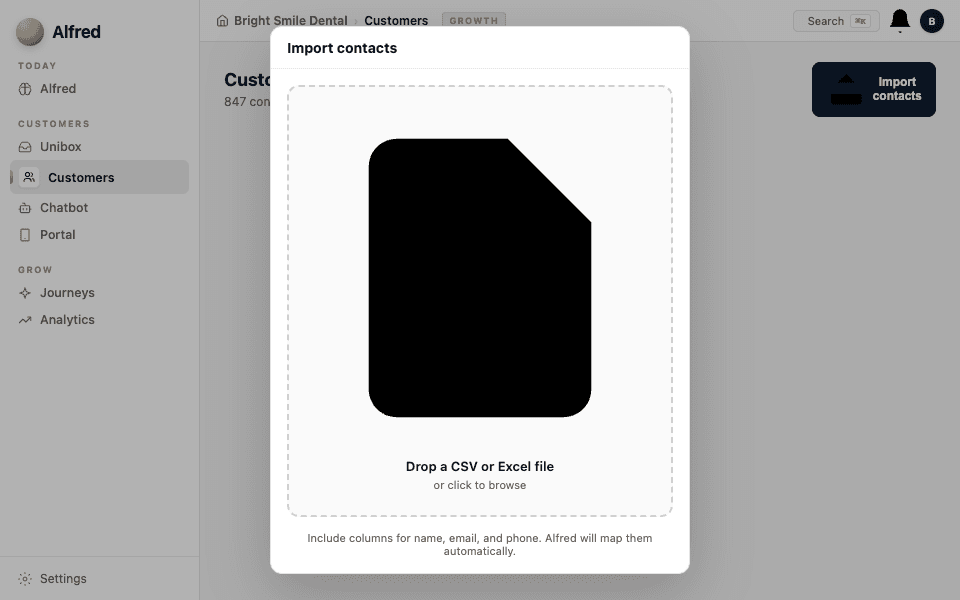
Go to Settings → Contacts and click Import contacts. Drag your CSV file in or click to browse.
- 4
Map your columns
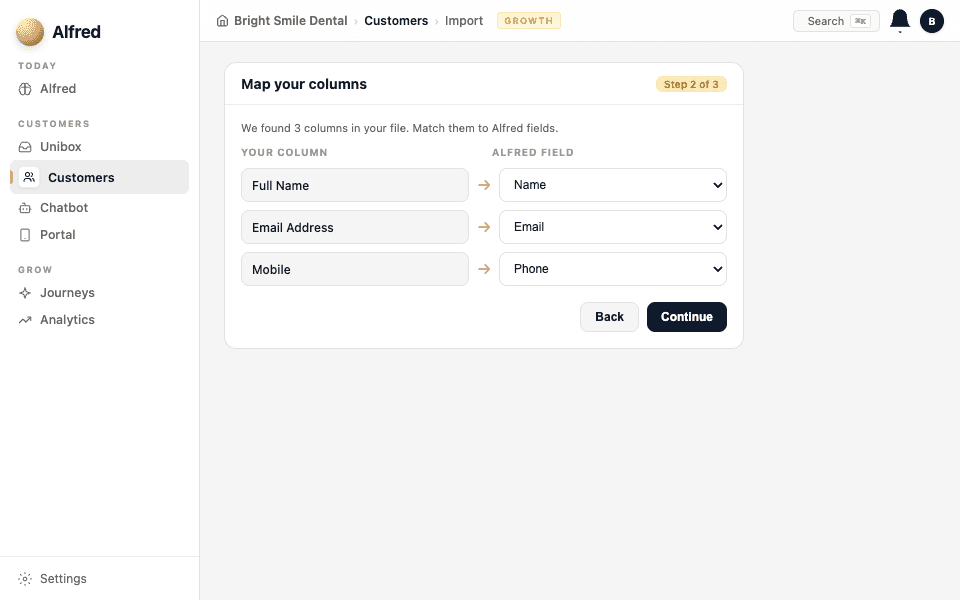
Alfred shows you the columns it found and asks you to map them to the right fields (email, first name, last name, phone, tags). If your column headers are standard, most will auto-map.
- 5
Confirm and import
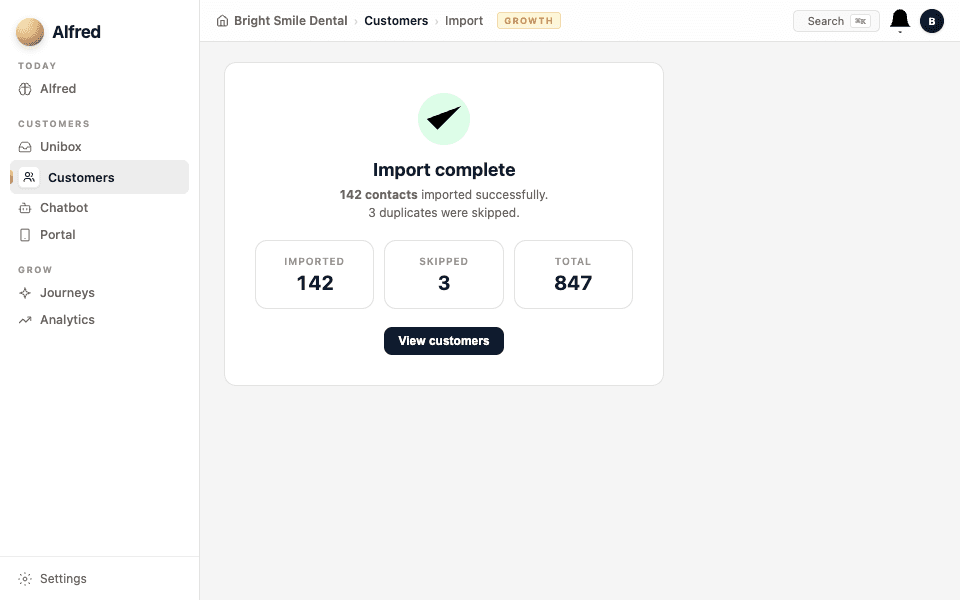
Review the preview, then confirm. Alfred imports the contacts, scores each one, and assigns them to segments. You'll see the count update on your Contacts page immediately.
After import, check the Contacts page to see how Alfred scored and grouped everyone. This scoring is what lets journeys target the right people.