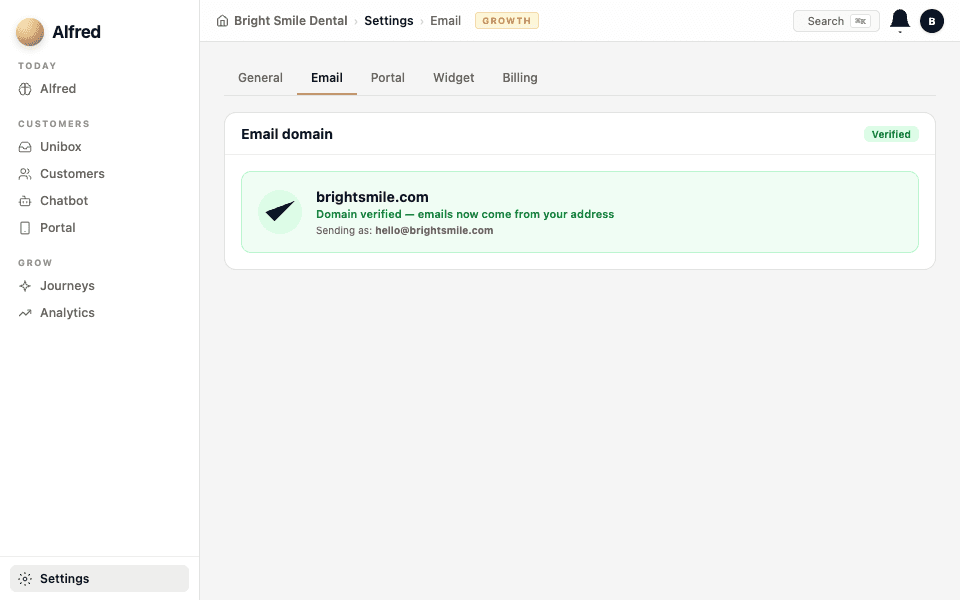
Connect a custom sending domain
Deliverability — the biggest silent failure point. Without this, emails land in spam.
- 1
Why this matters
Without a custom sending domain, Alfred's emails come from a shared address and land in spam. With your own domain (e.g. mail.yourbusiness.com), emails come from your business name and land in the inbox. This is the single biggest factor in whether your emails get read.
- 2
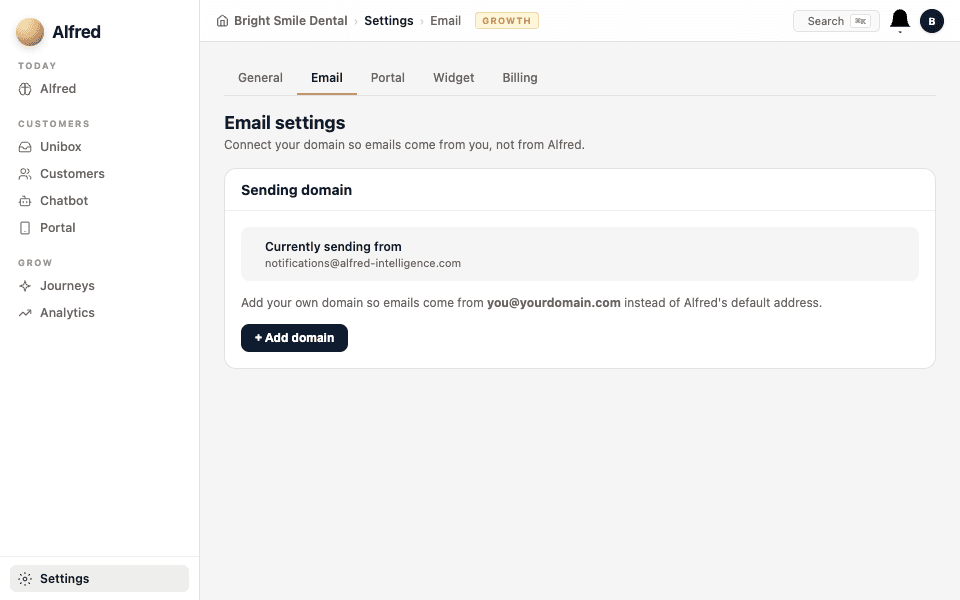
Open Email settings
Go to Settings → Email and find the Sending domain section. Click Add domain.
- 3
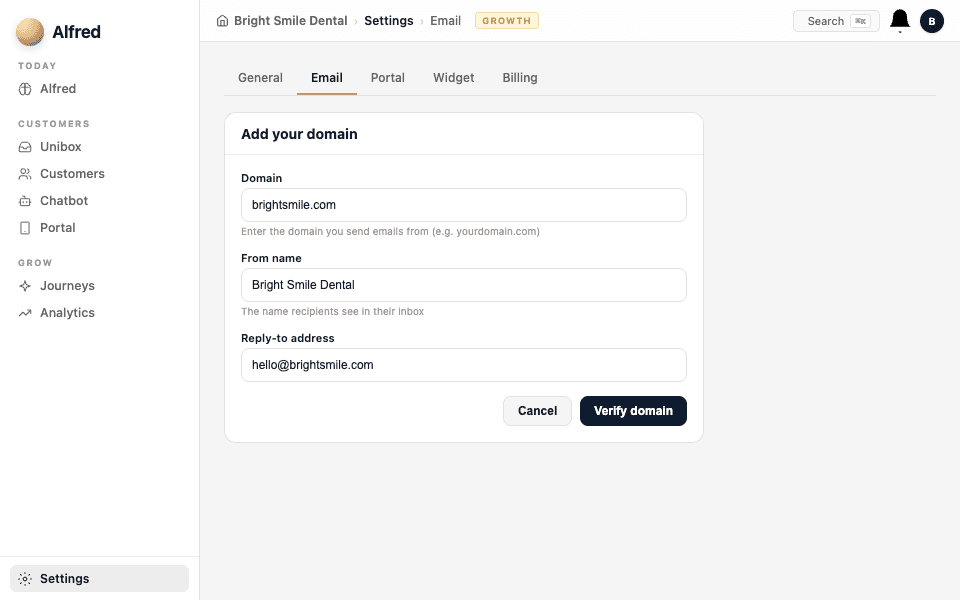
Enter your domain
Type the domain you want to send from (usually your main business domain, like yourbusiness.com). Alfred generates the DNS records you need to add.
- 4
Add the DNS records
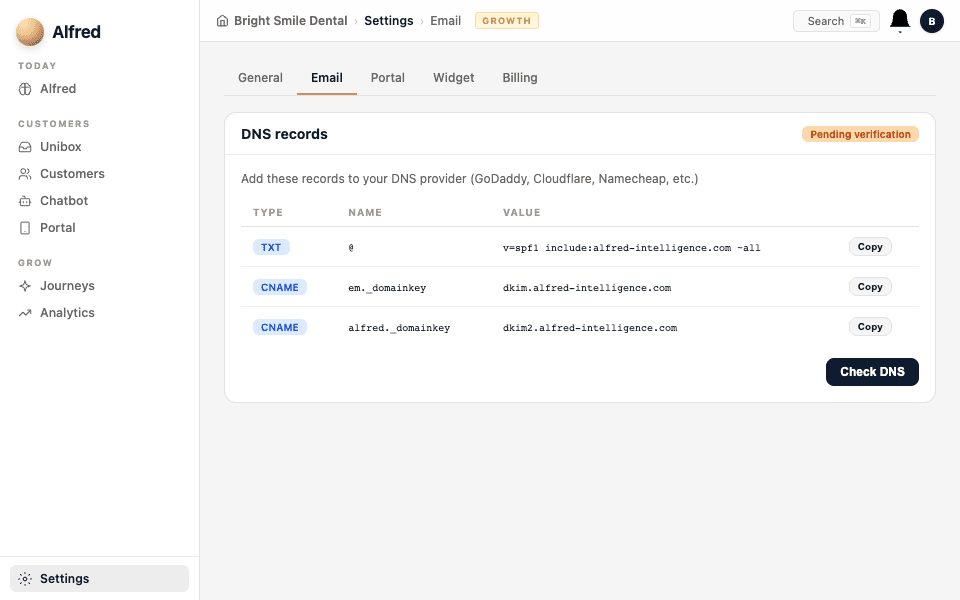
Alfred shows you three DNS records to add at your domain registrar (GoDaddy, Namecheap, Cloudflare, etc.):
1. SPF — tells email providers Alfred is allowed to send for you.
2. DKIM — cryptographically signs your emails.
3. DMARC — tells providers what to do with unsigned mail.
Copy each record and add it in your registrar's DNS settings.
DNS changes can take up to 48 hours to propagate, but most go live within an hour. Don't worry if verification fails immediately — try again later.
- 5
Verify
Come back to Alfred's Email settings and click Verify. Once all three records are confirmed, Alfred sends from your domain. Every email journey, every reply — all from your name.